Digital Signage Hardware Guide 2026: Screens, Players and Mounts
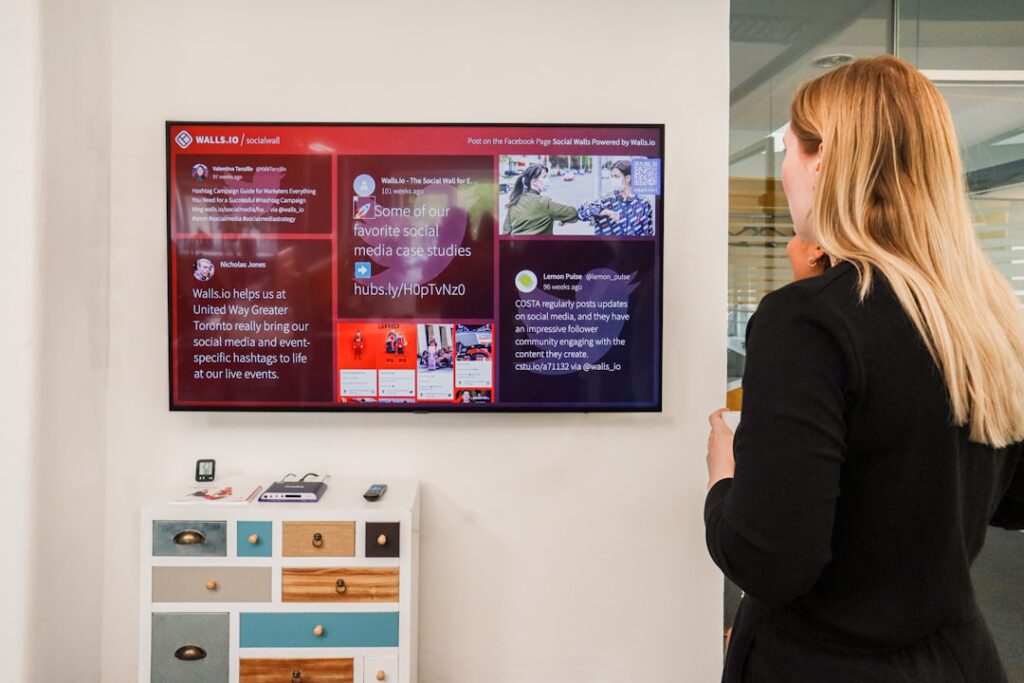
This digital signage hardware guide covers the decisions IT teams get wrong most often: buying consumer TVs instead of commercial displays, under-speccing media players, and ignoring mounting until installation day. Hardware is where digital signage projects most frequently run over budget or fail early. Getting it right upfront is straightforward once you know what to look for.
Quick summary
Displays: Buy commercial-grade panels rated for continuous operation. Consumer TVs will fail within 12–18 months in always-on deployments.
Players: Raspberry Pi for budget deployments with Yodeck; Windows mini-PCs for data-heavy or high-resolution content; SoC displays if you want zero separate hardware.
Mounts: Specify tilt and VESA pattern before ordering. Floor-to-ceiling installations need professional structural assessment.
Who this guide is for
This digital signage hardware guide is written for IT managers and facilities teams specifying hardware for a new deployment or replacing existing equipment. Whether you are equipping a single reception screen or rolling out 50 displays across a building, the hardware decisions are the same, only the scale changes.
Part 1: Commercial displays
Commercial vs consumer: why it matters
The single most important hardware decision in any digital signage deployment is using commercial-grade displays rather than consumer televisions. The difference is not marketing, it is engineering. Commercial panels are designed for continuous operation at 16 or 24 hours per day, 7 days per week. Consumer TVs are designed for 4–6 hours of daily use. Running a consumer TV as a permanent display will typically cause backlight failure within 12–18 months. A commercial display built for the same role will last 5–7 years.
Beyond longevity, commercial displays offer:
- Higher brightness: 500–700 nits standard (vs 250–350 nits on consumer TVs), essential for well-lit offices and window-adjacent installations
- Portrait mode support: panels rated for vertical orientation without overheating
- Remote management ports: RS-232 and LAN control for power scheduling and monitoring
- No auto-input switching or menu pop-ups: consumer TVs frequently interrupt content with input detection dialogs
- Longer warranty: typically 3 years on-site vs 1 year return-to-base for consumer
Display brands worth specifying
The commercial display market is dominated by a handful of reliable brands. Samsung and LG lead on volume and software integration, both offer System-on-Chip models that eliminate the need for a separate media player. NEC (now Sharp/NEC) and Philips Professional Displays (PPDS) are strong choices for demanding environments. ViewSonic offers competitive pricing at the entry level.
Sizing guidelines
| Location | Recommended size | Viewing distance |
|---|---|---|
| Meeting room door panel | 10–13″ (tablet) | Under 1m |
| Small office / break room | 43–50″ | 2–4m |
| Reception / main corridor | 55–65″ | 3–6m |
| Large lobby / open plan | 75–86″ | 5–10m |
| Video wall / auditorium | Multiple panels or LED | 8m+ |
A useful rule of thumb: the screen diagonal in inches divided by 10 gives the optimal viewing distance in metres. A 55″ display is comfortable to read from 5.5m away.
Brightness specifications
- Indoor standard (no direct light): 350–500 nits
- Indoor near windows or under bright overhead lighting: 700–1,000 nits
- Semi-outdoor or window-facing: 2,500–3,500 nits
- Full outdoor: 5,000+ nits with IP-rated enclosure
Budget expectations
Commercial display pricing varies widely by size and spec. As a rough guide for planning (verify with current supplier quotes):
- 43″ commercial panel: from ~£350–£500
- 55″ commercial panel: from ~£500–£800
- 65″ commercial panel: from ~£700–£1,200
- 75″ commercial panel: from ~£1,200–£2,000
- SoC models (built-in player) carry a £100–£200 premium over standard panels
Part 2: Media players
The media player is the device that connects to the display, runs your signage software, and fetches and renders content. Choosing the right player for your deployment type will save you troubleshooting time and avoidable hardware replacements.
Raspberry Pi
The Raspberry Pi 5 (4GB) is the most cost-effective standalone player for most SMB deployments. It is fanless, compact, and well-supported by every major signage platform. Yodeck ships preconfigured Raspberry Pi players free with annual subscriptions, for a 10-screen deployment on an annual plan, this eliminates over £800 in hardware cost. Weaknesses: not suitable for 4K content rendering or data-heavy dashboards at high refresh rates.
Android sticks
Android sticks (Amazon Signage Stick, generic Android HDMI sticks) are the cheapest discrete player option, typically £40–£80. They work adequately for image, video, and simple web content. However, they are less reliable under heavy scheduling loads and can struggle with smooth video transitions. Suitable for low-complexity deployments where cost is the primary constraint.
Windows mini-PCs
For deployments requiring live data dashboards, Power BI integrations, complex web applications, or 4K video rendering, a Windows mini-PC (Intel NUC-class or similar) is the right choice. Expect to budget £150–£400 depending on spec. Windows players are fully supported by all major platforms and can run fallback content locally if network connectivity fails.
System-on-Chip (SoC) displays
Samsung’s Tizen-based commercial displays and LG’s webOS commercial panels contain an integrated media player, no separate hardware is needed. This is the cleanest installation option: one cable, one device, one power supply. SoC displays are natively supported by ScreenCloud, Yodeck, TDM Signage, and most major platforms. The trade-off is a higher upfront display cost and less flexibility if you want to change software platform later.
BrightSign players
BrightSign is the professional-grade player choice for large-scale, high-reliability deployments: airports, stadiums, retail chains. They are more expensive (£200–£600+ per unit) and require BrightSign-compatible CMS software, but they offer hardware-level reliability and deterministic playback that software-based players cannot match. For standard office deployments they are overkill.
Part 3: Mounts and installation
Wall mounts
The majority of office digital signage installations use a fixed or tilting wall mount. Key specifications to confirm before ordering:
- VESA pattern: the hole spacing on the back of the display (e.g. 400×400mm). Must match the mount. Check the display datasheet, do not assume.
- Weight rating: mount must exceed the display weight with a safety margin.
- Tilt range: for displays installed above eye level, a downward tilt of 5–15° significantly improves readability.
- Cable management: specify mounts with integrated cable channels if the installation is visible.
Portrait orientation
Portrait-mounted screens are increasingly common for wayfinding, queue management, and retail displays. Confirm that your chosen display is rated for portrait operation, not all commercial panels are. Displays not rated for portrait will overheat because the cooling system relies on convection in landscape orientation.
Freestanding and ceiling mounts
Floor stands are useful for temporary or flexible deployments. Ceiling mounts work well in retail and hospitality environments where walls are not available. Both require careful cable routing planning. Ceiling installations in suspended tile ceilings must be anchored to the structural ceiling above, not the tiles, this requires a structural assessment for larger displays.
Connectivity and cabling
A common source of problems in digital signage installations is underspecified cabling. Key points:
- HDMI cable length: standard HDMI degrades above 5m. For runs over 5m use active HDMI, HDMI over CAT6 (HDBaseT), or fibre HDMI.
- PoE for small panels: meeting room tablet panels (10–13″) increasingly support Power over Ethernet, one CAT6 cable handles both data and power.
- Network drops: each media player needs a network connection. Wi-Fi works for simple content but is unreliable for live data feeds and high-bitrate video. Specify a wired drop for every screen during initial fit-out, retrofitting cabling is expensive.
- Power scheduling: use the display’s RS-232 or LAN management port, or a smart PDU, to schedule automatic power on/off rather than running screens 24/7 when unnecessary.
Common hardware mistakes to avoid
- Buying consumer TVs: they will fail within 12–18 months in always-on use. The hardware saving is wiped out by early replacement.
- Under-speccing brightness: a display that looks fine in a dim meeting room will be unreadable when the blinds are open. Always check your lighting conditions before specifying.
- Forgetting VESA patterns: mounts ordered without checking VESA compatibility frequently do not fit. Verify the display datasheet before ordering.
- Skipping wired network drops: Wi-Fi reliability on a busy corporate network is not good enough for production signage. Install CAT6 drops during fit-out.
- Not planning cable runs before mounting: discovering that cables need to traverse a structural wall after the display is mounted is an avoidable problem.
Putting it together: a hardware specification checklist
Before raising a purchase order, confirm:
- Display is commercial-grade, rated for your intended hours of operation
- Brightness spec matches the lighting environment
- VESA pattern noted and compatible mount selected
- Portrait operation confirmed if needed
- Player type matched to content complexity
- HDMI or video cable run length within spec (or active solution specified)
- Wired network drop available at each screen location
- Power scheduling method confirmed
For help choosing the right software to run on your hardware, see our guide to the best digital signage software in 2026. If you are just getting started and want to understand the full picture before specifying anything, our plain-English guide to digital signage covers the fundamentals.