Room Booking Microsoft 365 Integration: The IT Setup Guide
Integrating room booking with Microsoft 365 is the foundational task for any IT team deploying meeting room panels in a Microsoft-standardised environment. Done correctly, rooms appear in Outlook’s scheduling assistant, bookings sync instantly to door panels, and users can find and book a room without leaving Teams or Outlook. This guide covers the exact steps: creating room mailboxes, configuring calendar permissions, and connecting third-party panels to your Exchange environment.
How Microsoft 365 room booking works
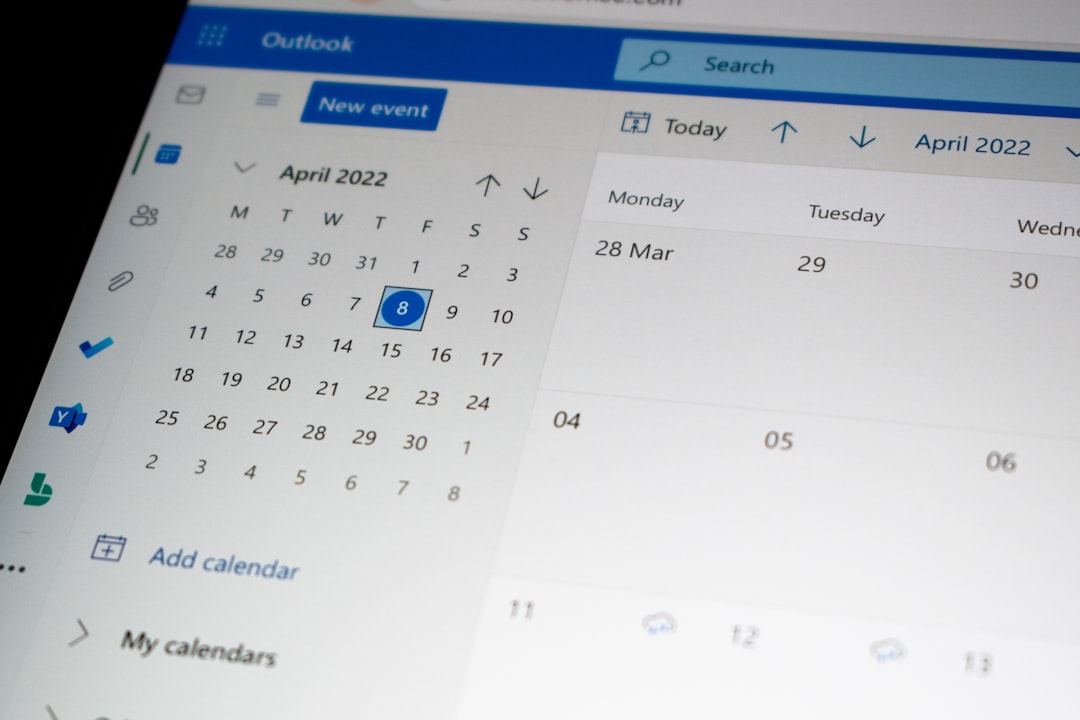
Microsoft 365 room booking is built on Exchange Online resource mailboxes. Each bookable room is represented by a room mailbox, a special Exchange mailbox type that accepts or declines meeting invites automatically based on availability. When a user invites a room to a meeting in Outlook or Teams, Exchange checks the room’s calendar, and if the slot is free, the invite is auto-accepted. The booking appears on the room’s calendar, which is what door panels read to display availability.
This is the native Microsoft path and requires no third-party booking software for basic functionality. Third-party platforms (Joan, Evoko, Condeco) layer on top of this infrastructure, they read the Exchange calendar and may add features like ad-hoc booking from panels, utilisation analytics, and check-in enforcement.
Step 1: Create room mailboxes in Exchange Online
Room mailboxes are created in the Microsoft 365 admin centre or via PowerShell. The admin centre path:
- Go to Microsoft 365 admin centre → Resources → Rooms & equipment
- Click Add resource and select Room
- Enter the room name (use a consistent naming convention, building/floor/room number works well at scale), email address, capacity, and location
- Click Save
Via PowerShell (Exchange Online module):
New-Mailbox -Name "Meeting Room 2A" -DisplayName "Meeting Room 2A" -PrimarySmtpAddress meetingroom2a@yourdomain.com -RoomSet room properties (capacity, location, equipment):
Set-Place -Identity meetingroom2a@yourdomain.com -Capacity 8 -Floor 2 -Building "HQ"Repeat for every bookable room. Use a consistent naming and address convention before you start, renaming mailboxes after panels are connected requires reconnecting them.
Step 2: Configure booking policies
Each room mailbox has a set of calendar processing rules that control how booking requests are handled. Configure these via PowerShell:
Set-CalendarProcessing -Identity meetingroom2a@yourdomain.com -AutomateProcessing AutoAccept -AllowConflicts $false -BookingWindowInDays 180 -MaximumDurationInMinutes 480 -DeleteComments $false -DeleteSubject $false -AddOrganizerToSubject $falseKey parameters to review:
- AutomateProcessing AutoAccept: automatically accepts bookings when the room is free
- BookingWindowInDays: how far in advance users can book (180 days = 6 months is typical)
- MaximumDurationInMinutes: cap on single booking length (480 = 8 hours)
- AllowRecurringMeetings: set to $false if you want to prevent recurring bookings from locking out rooms long-term
- EnforceCapacity: if set to $true, Exchange will reject bookings that exceed the room’s stated capacity, useful but requires accurate attendee lists on invites
Step 3: Add rooms to the Room Finder
Outlook’s Room Finder lets users search for available rooms by building, floor, or capacity. Populate it by creating room lists:
# Create a room list for a building
New-DistributionGroup -Name "HQ Rooms" -RoomList

# Add rooms to the list
Add-DistributionGroupMember -Identity "HQ Rooms" -Member meetingroom2a@yourdomain.com
Add-DistributionGroupMember -Identity "HQ Rooms" -Member meetingroom3b@yourdomain.com
Users can then filter Room Finder by list name (“HQ Rooms”) rather than browsing all rooms in the directory. For a multi-building or multi-floor organisation, create one list per location.

Step 4: Connect door panels to Exchange
Third-party panels (Joan, Logitech Tap Scheduler, Evoko) connect to Exchange using either:
- A dedicated service account: create a single Exchange user account with delegate access to all room mailboxes. The panel software authenticates as this account to read and write calendar data. Simple to set up; requires careful permission scoping.
- OAuth / Microsoft Graph API: the modern, recommended approach. The panel software registers as an Azure AD application with Microsoft Graph calendar permissions. More secure, supports conditional access policies, and does not rely on password credentials.
For Joan, Evoko, and most modern room booking platforms, the setup wizard walks through the OAuth registration process. The steps are typically:
- In your Azure AD portal, register a new application for the room booking platform
- Grant the application
Calendars.ReadWriteandPlace.Read.AllMicrosoft Graph permissions - Generate a client secret and copy the Application (client) ID and Directory (tenant) ID
- Enter these credentials into the room booking platform’s Microsoft 365 connection settings
- Assign each panel to its corresponding room mailbox within the platform
The Logitech Tap Scheduler, used within a Teams Rooms deployment, authenticates via the room’s Teams Rooms account (a resource mailbox with a Teams Rooms licence assigned) and does not require a separate service account.
Step 5: Configure Teams meeting rooms (optional)
If you are deploying Microsoft Teams Rooms devices alongside your booking panels, each room needs a Teams Rooms resource account. This is a room mailbox with a Teams Rooms licence (Basic or Pro) assigned:
- In Microsoft 365 admin centre, assign a Teams Rooms Basic or Pro licence to the room mailbox
- Ensure the account has a password that does not expire (service accounts should not require interactive sign-in)
- Sign into the Teams Rooms device using the room account credentials during initial setup
The Teams Rooms device then displays the room’s calendar and allows one-touch join for scheduled meetings.
Common integration issues
- Panel shows wrong time zone: confirm the room mailbox time zone matches the office location, set via
Set-MailboxCalendarConfiguration -Identity room@domain.com -TimeZone "W. Europe Standard Time" - Bookings not appearing on panel: check that the service account or OAuth app has delegate access or Graph permissions to the room mailbox, not just the user’s own mailbox
- Auto-accept not working: confirm
AutomateProcessingis set toAutoAcceptand notAutoUpdate(AutoUpdate only updates existing bookings, it does not accept new ones) - Room not appearing in Room Finder: ensure the room is a member of at least one room list distribution group
For hardware recommendations for meeting room panels, see our room booking systems comparison. For the broader hybrid meeting room build, see our hybrid meeting room setup guide.